Welcome to your
Task Portal.
Everything you need to find your work, share progress and stay in the loop — all in one place.
Getting started
If you already have an account, simply sign in. New team members can request an account from the same page.
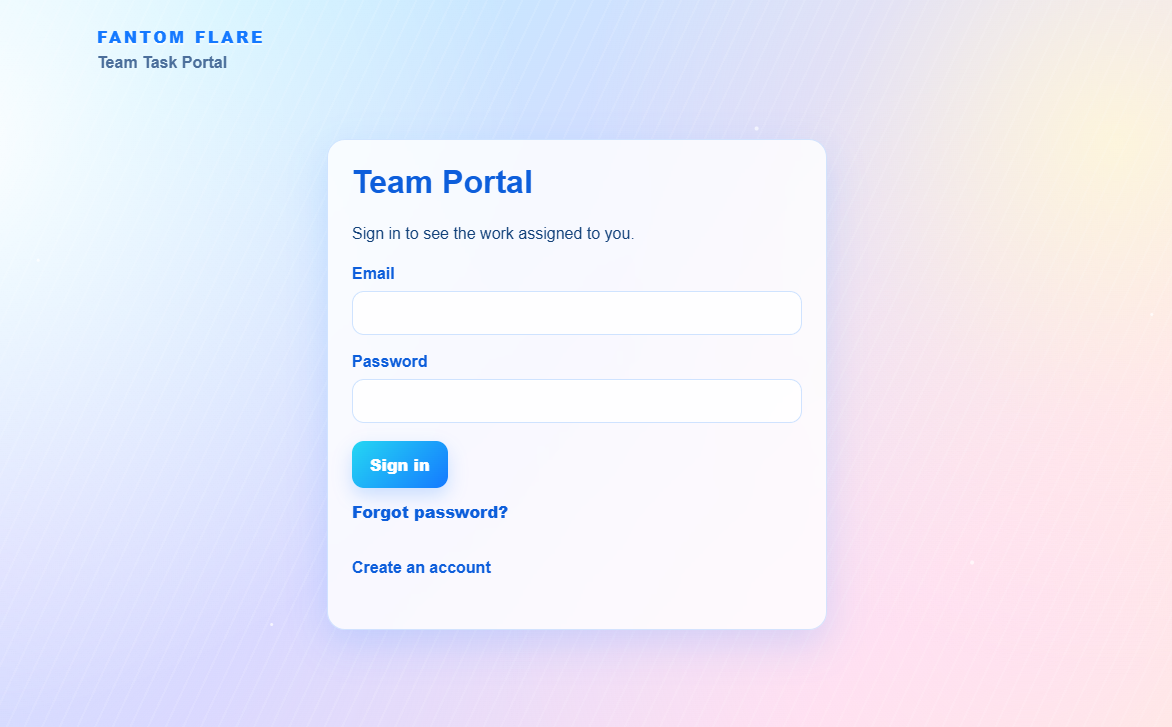
Sign in
- Enter your registered email.
- Enter your password.
- Click Sign in.
You'll arrive directly on My Work — your homepage.
Create an account
- Click Create an account.
- Select your name from the Portal Assignee dropdown.
- Enter your email and submit your request.
- Wait for approval, then follow the email invitation to set up your account.
Meet My Work
My Work opens automatically when you sign in. It's your personal list of assigned tasks, including the work still in progress and any completed tasks you've chosen to show.
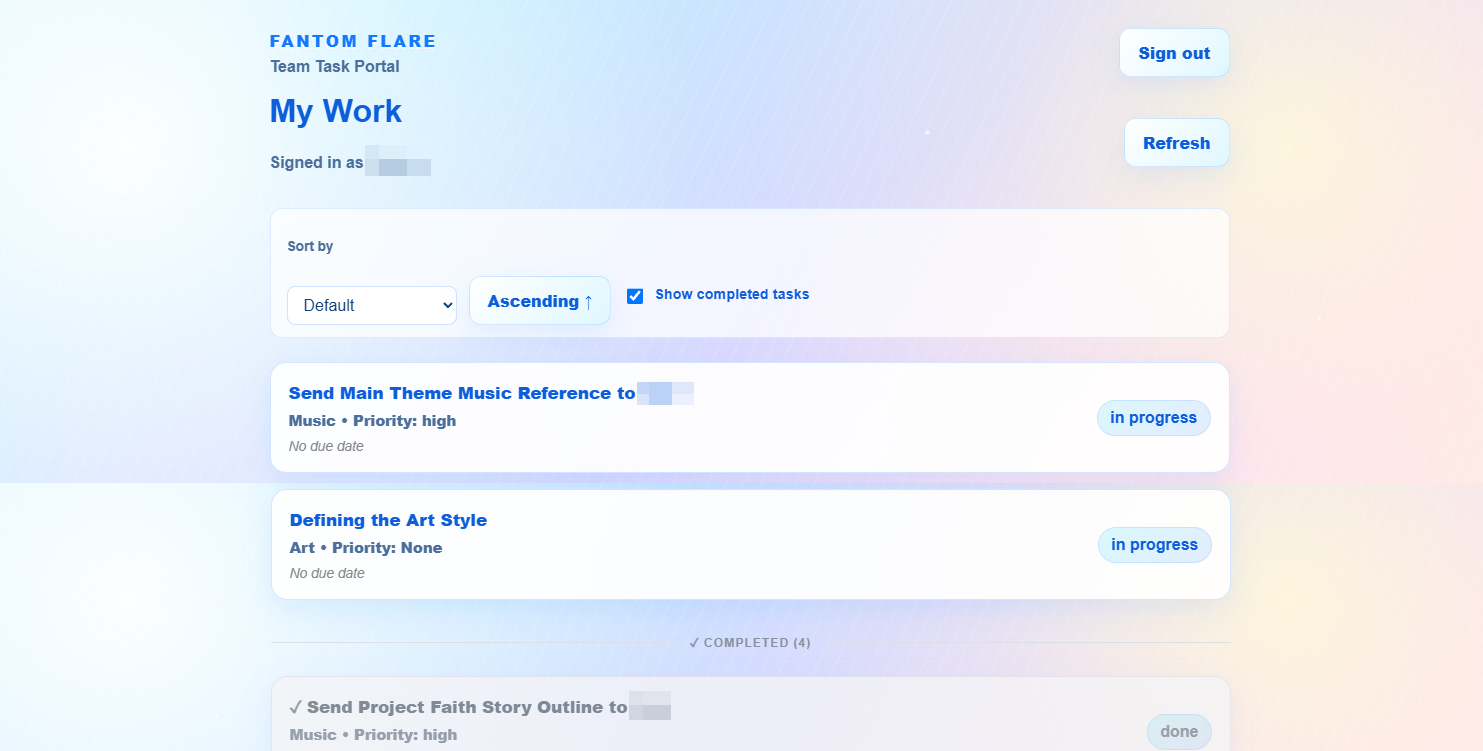
Task name
Tells you what you're being asked to do. Click it to read more.
Status
Shows whether the work is to do, in progress or done.
Priority
Helps you see what needs attention first. Some tasks have no priority.
Due date
Shows the deadline when one has been set. Some tasks have no due date.
Organising Your Tasks
These controls are on your My Work homepage. Use them to find what matters most and keep the list up to date.
Sort by
Use the dropdown on My Work to arrange tasks by Priority, Status, Due Date or Name.
Ascending / Descending
Click this button to reverse the sorting direction.
Show completed tasks
Tick the checkbox to see finished work, separated and greyed out. Untick it to focus on unfinished tasks.
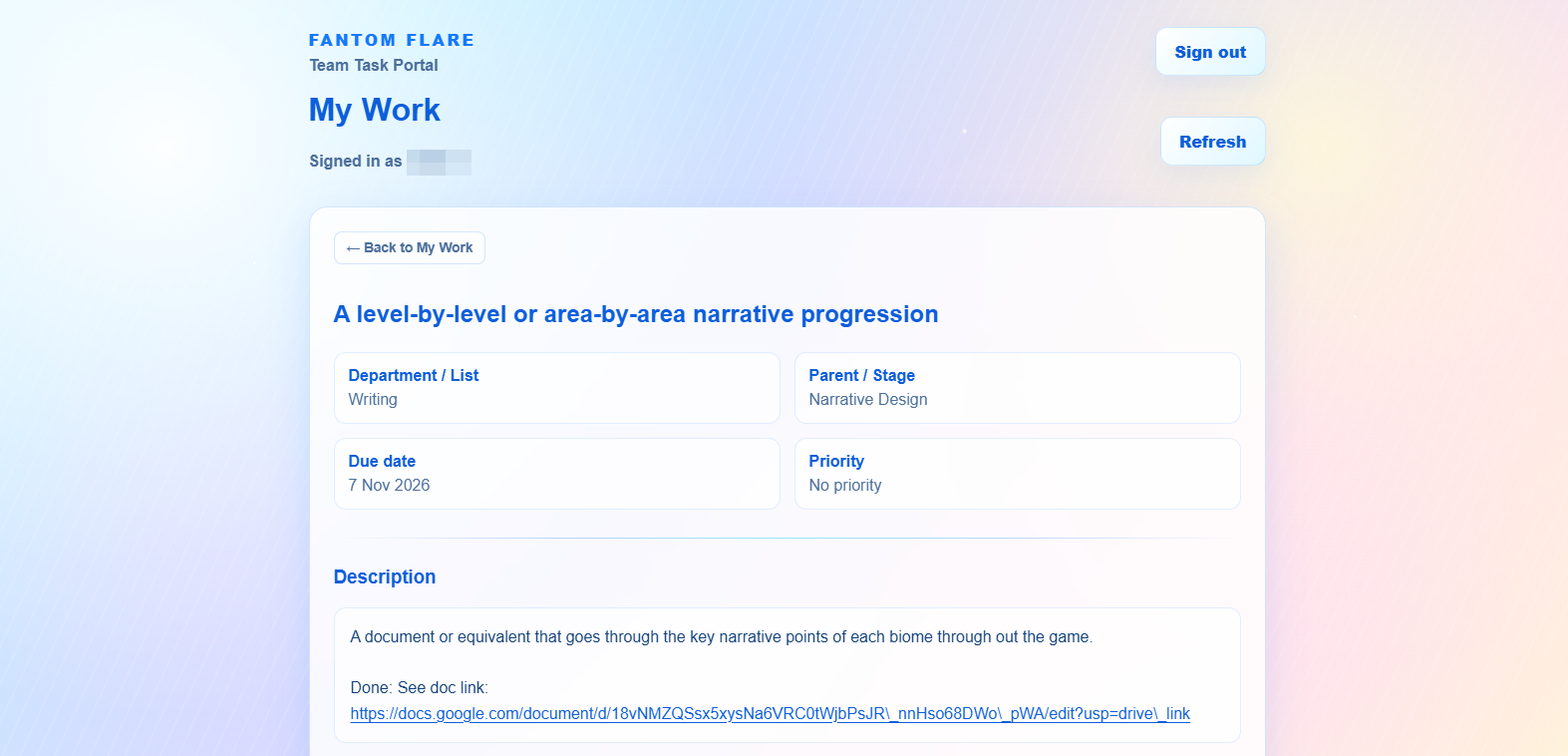
Opening a task
- 1On My Work, find the task you'd like to read.
- 2Click its task card to open the full details.
- 3Read the Description before starting. Check the due date, priority and any links to reference material.
- 4When you're finished looking, click ← Back to My Work near the top of the task.
Updating your progress
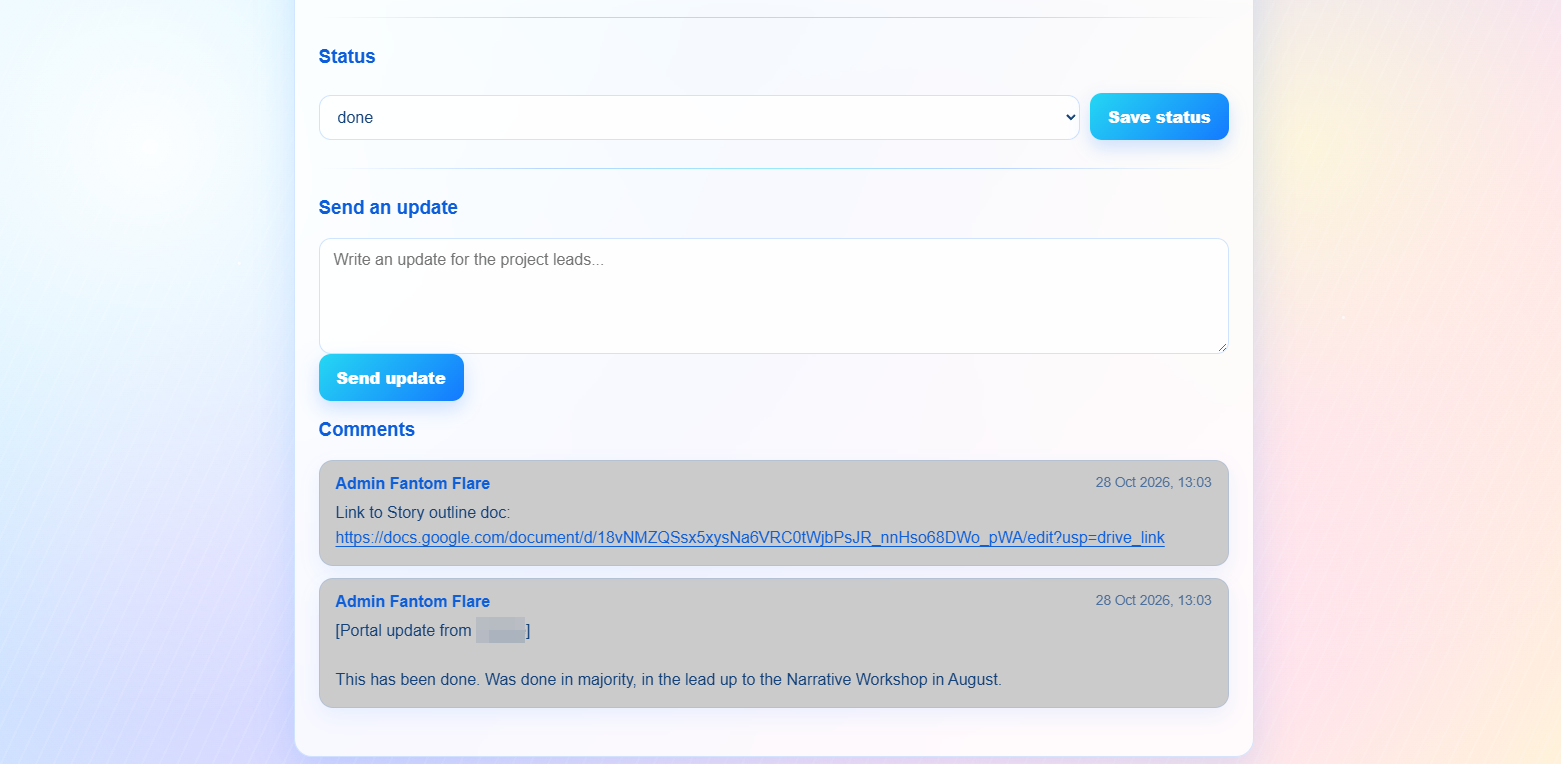
When you start or finish a task, change its status so your department lead knows how things are going.
- 1Open the task you want to update.
- 2Scroll down to Status.
- 3Choose the right option in the dropdown.
- 4Click Save status. Selecting an option alone does not save it.
Statuses depend on the task. Mark work as done only when you've finished what's required.
Sending an update comment
An update comment is a message you post on a task to share progress, ask a question or explain a problem. Your message appears under Comments, where the team can follow the conversation.
- 1Open the relevant task and scroll to the section labelled Send an update.
- 2Type your update comment in the box.
- 3Click Send update to post your comment.
- 4Read earlier update comments under Comments.
“I've finished the first draft and uploaded the reference document. I'll review the feedback before marking this task as done.”
Common questions
I can't see any tasks. What should I do?
Click Refresh. If the list is still empty, check with your department lead that work has been assigned to your Portal Assignee name.
My task has no priority or due date. Is that normal?
Yes. Not every task has a priority or deadline set. Ask your department lead if you need clarification.
What if I don't understand a task?
Check its description and comments first, then send an update comment or ask your department lead for guidance.
What if I can't meet a deadline?
Let your department lead know as early as you can. Sharing an update comment on the task also helps keep everyone informed.
I forgot my password.
On the sign-in screen, click Forgot password? and follow the email instructions.
What if the Task Portal isn't working?
Try refreshing the page. If the problem continues, contact the administrator with a brief description and, if possible, a screenshot.
A little progress,
every time you log in.
Check your tasks, keep your statuses current, and share update comments when something changes. That's all it takes to help the team move forward together.
Open Task Portal